Before you can build a Kanzi application for your target platforms, set up and configure the Kanzi build environment for your target platforms. The build environment includes tools that the Kanzi build system uses to build your application for your target platforms. Here you can find the information about what you need to install if you want to manually install the build environment for Kanzi applications.
You can find the build definitions for supported platforms in your Kanzi project directory at <KanziWorkspace>/Projects/<ProjectName>/Application/configs/platforms.
When building Kanzi applications for Android, the preferred way of setting up the build environment is to use the Kanzi Build Environment tool. See Installing the Kanzi build environment for Android.
To build and deploy Kanzi applications for other platforms, you need:
- Python 2.7.x
- Python 3.x
- Scons 2.5.1
Installing the Kanzi build environment manually
To install the Kanzi build environment manually:
- Install Python 3.x:
- For example, download and install Python 3.2.
- Add Python 3.x installation path (for example,
C:\Python32) to your system path.
- Install Python 2.7.x.
For example, download and install Python 2.7. - Install SCons 2.5.1.
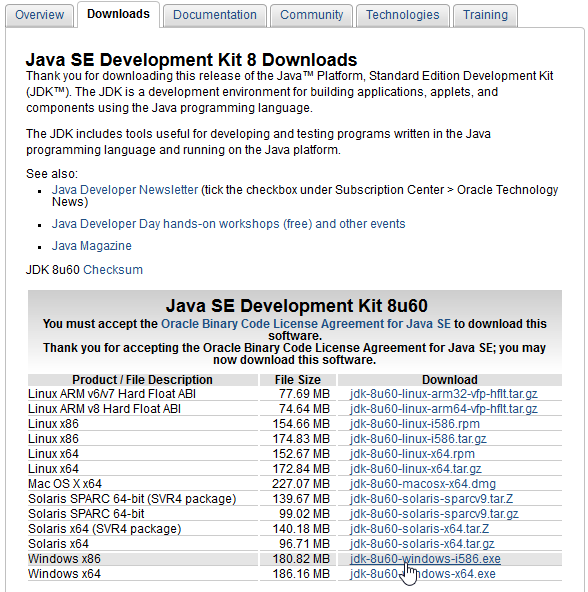
For example, download and install SCons 2.5.1. During the installation select the Python 2.7.x version you installed. - Install Java Development Environment Kit 1.8 or newer (Windows x86, 32-bit version):
- Download and install Java Development Environment Kit 1.8 or newer (Windows x86, 32-bit version).
- Add
%JAVA_HOME%\binto your system path.
- Download and install Java Development Environment Kit 1.8 or newer (Windows x86, 32-bit version).
-
Install Apache Ant 1.9.5 or newer:
- Download and install Apache Ant 1.9.5 or newer.
- Add
%ANT_HOME%\binto your system path.
- If you want to build Kanzi applications for Android:
- Install Android SDK, Android SDK Platform Tools, and Android SDK Build Tools (Kanzi requires API level 10 or newer):
- Download and install Android SDK.
- Download and install Android SDK Platform Tools.
- Download and install Android SDK Build Tools.
- After installing Android SDK install these SDK Platform Android versions:
- Use the Android SDK manager to install the USB driver package.
- Add Android SDK Platform Tools installation path to your system path.
- Download and install the Android NDK 10e (64-bit, 32-bit).
- Install the USB device drivers for your Android device:
- Find the Android USB driver on Android developer website page Android OEM USB Drivers or install the drivers provided by the manufacturer of your device.
- Follow the installation instructions provided on the Android developer website or the manufacturer of your device.
- On your Android device:
- In Settings enable Development options.
- In Settings > Security enable Unknown sources.
- If you are using a Samsung device in USB computer connection enable the Camera (PTP) setting.
- After connecting your Android device to your computer, on your Android device allow USB debugging when prompted.
- (Optional) To check that the device drivers are installed correctly, connect your Android device to your computer, run
adb devicescommand in the Windows command prompt.
If the Android USB driver is installed correctly, your device is listed in the command output.
- Find the Android USB driver on Android developer website page Android OEM USB Drivers or install the drivers provided by the manufacturer of your device.
- Install Android SDK, Android SDK Platform Tools, and Android SDK Build Tools (Kanzi requires API level 10 or newer):
- Set the environment variables for the software you installed. See Setting the Kanzi environment variables.
Setting the Kanzi environment variables
Kanzi Command Prompt and Kanzi Studio build system use the environment variables to build Kanzi applications.
You can set the Kanzi environment variables in these ways:
- Set the environmental variables in %ProgramData%\Rightware\<KanziVersion>\kanzi_environment_variables.bat, Kanzi's internal environment variable configuration. This allows you to configure Kanzi build environment without changing your system's environment variables. That way you can have other software on the same computer using existing configuration and tools.
Kanzi uses your system's environment variables for all variables not set in kanzi_environment_variables.bat. - Set the system environment variables in your computer system settings. This way you set the same environment variables for your entire computer system.
You can access your system environment variables by right-clicking Computer in the Start Menu and by selecting Properties > Advanced System Settings > Advanced > Environment Variables.
Set these environment variables:
PYTHON_HOMEto the Python 3.x path.
For example, C:\KanziWorkspace_3_6_3_2514\3rdPartySDKs\Python32SCONS_HOMEto the Python 2.7.x scripts directory that contains scons.bat.
For example, C:\KanziWorkspace_3_6_3_2514\3rdPartySDKs\Python27\ScriptsJAVA_HOMEto the JDK version 1.8 path.
For example, C:\Program Files (x86)\Java\jdk1.8.0_60ANT_HOMEto the Apache Ant version 1.9.5 path.
For example, C:\KanziWorkspace_3_6_3_2514\3rdPartySDKs\apache-ant-1.9.5NDK_PATHto the Android NDK path.
For example, C:\KanziWorkspace_3_6_3_2514\3rdPartySDKs\android-ndk-r10eANDROID_SDKto the Android SDK path.
For example, C:\KanziWorkspace_3_6_3_2514\3rdPartySDKs\android-sdk-windowsKANZI_HOMEto the Kanzi workspace path of the Kanzi version you want to use.
For example, C:\KanziWorkspace_3_6_3_2514
Viewing the Kanzi environment variables
To view the current Kanzi environment variables, in Kanzi Studio select > User Preferences and in the Advanced tab click Open Build Environment Configuration.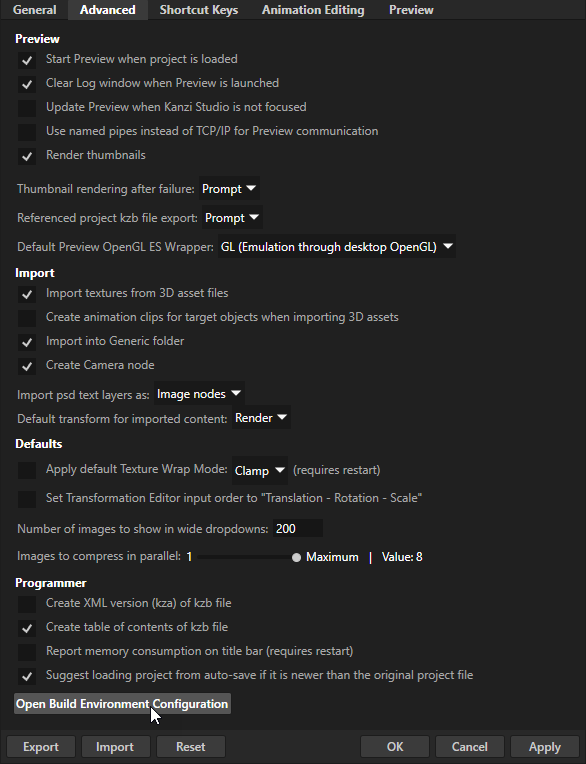
Testing your Kanzi build environment
To test whether your Kanzi build environment works, create a Kanzi application and deploy it to your platform. See Tutorial: Create a simple in-vehicle infotainment application and Deploying Kanzi applications.
See also
Installing the Kanzi build environment for Android
Deploying Kanzi applications to Android
Tutorial: Create a simple in-vehicle infotainment application
